Putting my smart home in a box: UniFi VLANs and a zone-based firewall
Why a hacked camera should not be able to see my NAS, and how I split the house into Main, IoT and Guest with UniFi.
Here is a bad idea: put your laptop, your NAS, a cheap camera, a litter box with Wi-Fi and your guests’ phones on the same network.
That is the default almost everywhere. A flat network means every device can try to talk to every other device. The weakest one sets the security level for all of them, and the weakest one is never the laptop.
This is how I fixed that at home, and why each rule exists.
The threat model, in plain words
My cheap devices are the likely entry points. Cameras, smart bulbs and appliances ship with old firmware, rarely get updates, and often phone home to servers I know nothing about. If one of them is compromised, I want the damage to stop at that device.
On a flat network a compromised bulb can scan the network, find my NAS and try its login page. After segmentation it cannot even open a connection.
So the rules are simple:
- IoT devices get the internet and nothing else.
- Guests get the internet and nothing else.
- My own devices can reach everything, including the IoT network, so I can still use my cameras.
That is called limiting the blast radius. It costs nothing but an afternoon.
The kit
A UniFi Express 7 does the routing, firewall and Wi-Fi. It sits behind my ISP’s router, which means double NAT. The practical effect is that UniFi’s own WireGuard server is unreachable from outside, so for remote access I use UniFi Teleport, which needs no port forwarding.
Three networks, three Wi-Fi names

| Network | VLAN | Subnet | What lives there |
|---|---|---|---|
| Main | 1 | 192.168.1.0/24 | Laptops, phones, Apple TV, Sonos, the NAS |
| IoT | 20 | 192.168.20.0/24 | Cameras, litter boxes, smart lights |
| Guest | 30 | 192.168.30.0/24 | Visitors, internet only |
Each one gets its own Wi-Fi name, so a device lands in the right network the moment it joins.
| Wi-Fi | Network | Bands | Notes |
|---|---|---|---|
| Main | Main | 5 and 6 GHz | Everything I trust |
| IoT | IoT | 2.4 GHz only | Most cheap smart devices only speak 2.4 GHz anyway |
| Guest | Guest | 2.4, 5 and 6 GHz | WPA2/WPA3, no captive portal, client isolation on |
Client isolation matters on the guest network. Without it, two visitors’ phones could talk to each other.
The zone-based firewall
Older UniFi firmware wrote firewall rules per network pair, which gets messy fast. The newer zone-based firewall groups networks into zones and lets you write rules between zones instead.
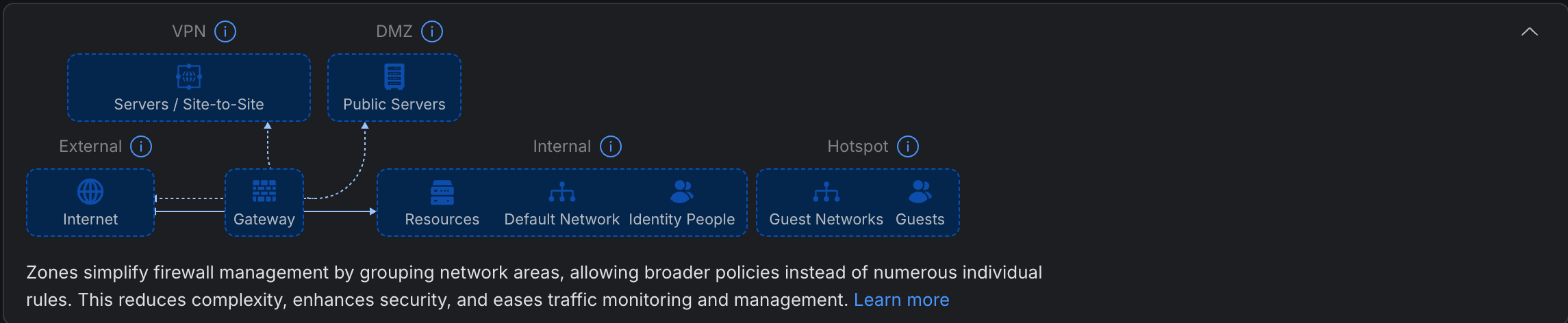
One warning before you try it: the upgrade from the legacy firewall is one-way. Take a configuration backup first. Mine is under Settings, System, Backups.
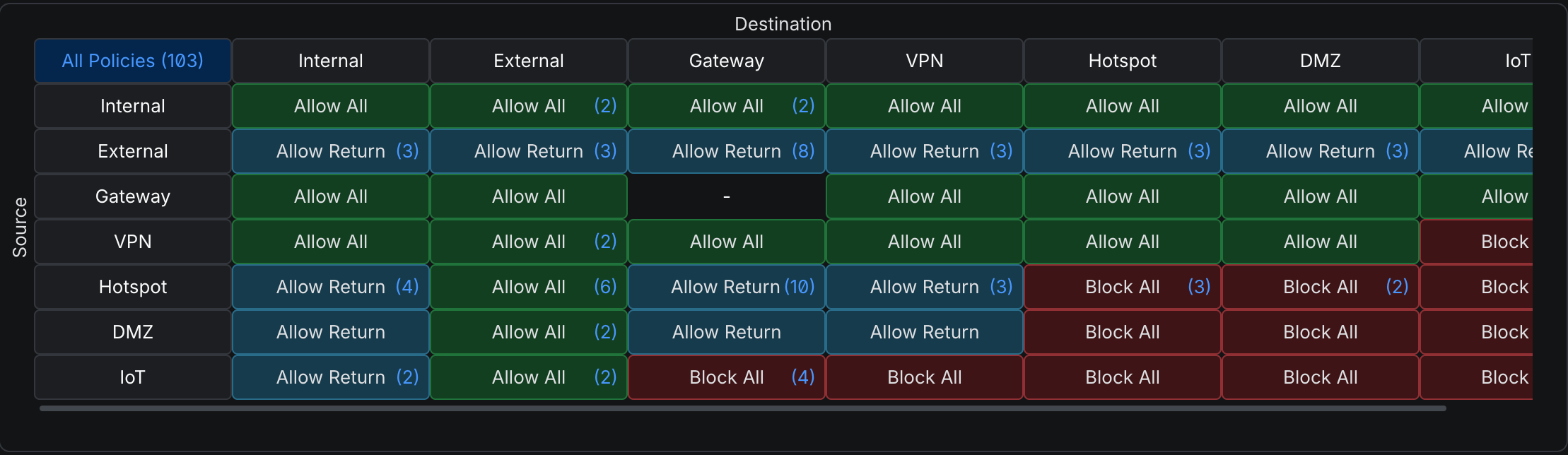
UniFi ships sensible defaults between zones. This is what I get before writing a single rule of my own:
- IoT to Internal: blocked
- IoT to Internet: allowed
- IoT to the gateway itself: allowed, which I tighten below
- IoT to VPN, Hotspot or DMZ: blocked
- Guest to Internal: return traffic only, so a guest cannot start a connection to my network
Three rules of my own
The defaults get you most of the way. I added three policies, and their order matters.
| # | Policy | From to | Action | Detail |
|---|---|---|---|---|
| 1 | Allow Internal to IoT | Internal to IoT | Allow | All traffic, with return traffic allowed automatically |
| 2 | Allow IoT to Gateway DNS DHCP NTP | IoT to Gateway | Allow | Ports 53, 67 and 123 only |
| 3 | Block IoT to Gateway | IoT to Gateway | Block | Everything else aimed at the router |

Rule 1 is how I still reach my cameras and, later, Home Assistant. Rules 2 and 3 are a matched pair. An IoT device needs the router for exactly three things: DNS to look up names, DHCP to get an address and NTP to learn the time. Rule 2 permits those and rule 3 drops everything else, such as the router’s admin interface. Swap their order and the block would swallow the allowance.
The 682 in the screenshot is the part I find reassuring. Something on that network keeps knocking on the router’s door, and the firewall keeps saying no.
The result: IoT devices reach the internet and the router’s DNS, DHCP and NTP. They cannot open a connection to my Main network or to any other service on the router. Main can reach IoT.
UniFi quietly answers all DNS
There is a side effect worth knowing. UniFi intercepts every outbound DNS query on port 53, even if a device asks Cloudflare’s 1.1.1.1 directly. That is great for filtering, because a device cannot dodge the ad blocker by choosing its own resolver. It also breaks tools that assume they are talking to the real internet.
It broke my media server’s HTTPS certificates. Traefik checks that its Let’s Encrypt challenge record is visible in public DNS, but UniFi answered that query itself, from my local records, so Traefik never saw it.

I wrote up the rest in the media server post.
Protection, on the free tier
UniFi’s CyberSecure has a free standard tier, and I use most of it:
- Intrusion Prevention is on in “Notify and Block” mode, with all detection categories, across Main, IoT and Guest.
- Encrypted DNS is set to Auto.
- Content filtering runs as two filters. Main gets basic filtering (adult and malicious sites) plus ad blocking, with a small allowlist so subtitle downloads keep working. IoT and Guest get basic filtering and ad blocking with no allowlist at all.
Blocked ad and tracker domains resolve to 0.0.0.0, which is easy to test:
nslookup doubleclick.net
# the answer should be 0.0.0.0
The boring basics
None of these are clever. All of them matter more than the clever bits:
- No port forwards.
- UPnP off.
- SSH on the router off.
- Automatic firmware updates on.
- Weekly automatic configuration backups.
- Rogue DHCP detection on, so a rogue device handing out addresses gets flagged.
How I check that it works
A firewall you have not tested is a hope. These are my four checks:
- Tracker blocking.
nslookup doubleclick.netfrom a laptop should return0.0.0.0. - Guest isolation. From a phone on the Guest Wi-Fi, the NAS’s web address and the router’s address should not load.
- What a device talks to. In UniFi, open the client’s details and look at its 24-hour internet activity and traffic flows. Cameras talk to more places than you would guess.
- What got blocked. CyberSecure’s Threat Management lists blocked events.
Gotchas
- The zone upgrade cannot be undone. Back up first.
- Some devices ignore the move. One camera showed an address from my Main range even though it was online on the IoT VLAN. The likely cause is a fixed address set inside the device’s own app, which does not follow it to a new network. Switch it to DHCP and reboot.
- UniFi warns that it will pause legacy rules when you move a network into a zone. That is expected.
- Test one device first. Moving every gadget at once means you cannot tell which one broke.
What is next
Home Assistant now runs on the NAS and reaches the IoT network through rule 1. I wrote up that setup in Home Assistant on the NAS. Once it controls the cameras locally, I will block their own internet access in UniFi, keeping a way to allow it briefly for firmware updates. A camera that cannot phone home cannot be told to do anything from outside.
The pattern is the point. Decide who needs to talk to whom, write that down as zones and rules, and let everything else be blocked by default.